

We built grid reports with one goal in mind: working with your data in Quickbase should feel as natural as working in a spreadsheet. Grid reports are the new version of Quickbase table reports. We launched them in May, and you can turn them on per app in App Properties. New apps have them on by default.
Where We Started
Picture a project manager opening her team's task report on a Monday morning. Here's what grid reports gave her from day one:
-
Spreadsheet-like editing: she double-clicks a cell to edit it, fills a status down a column, copies and pastes values, and pins the Task Name column so it stays in view as she scrolls.
-
Column filters with nested queries: she narrows down to exactly the tasks she needs, right from the column header.
-
Fully editable embedded reports: the same report sits on her project dashboard and project forms, and she can edit it there without leaving the page.
-
Faster load times: speed came up a lot in customer conversations, especially for big reports. Grid reports load about 10% faster on average.
-
Inline child records: when a new project comes in, she adds its tasks while she's still creating the project, before she even saves it.
Those features were the foundation. Since then, we've kept listening to how people work in their reports, and grid reports are where all our new report work happens. Here's what we've added.
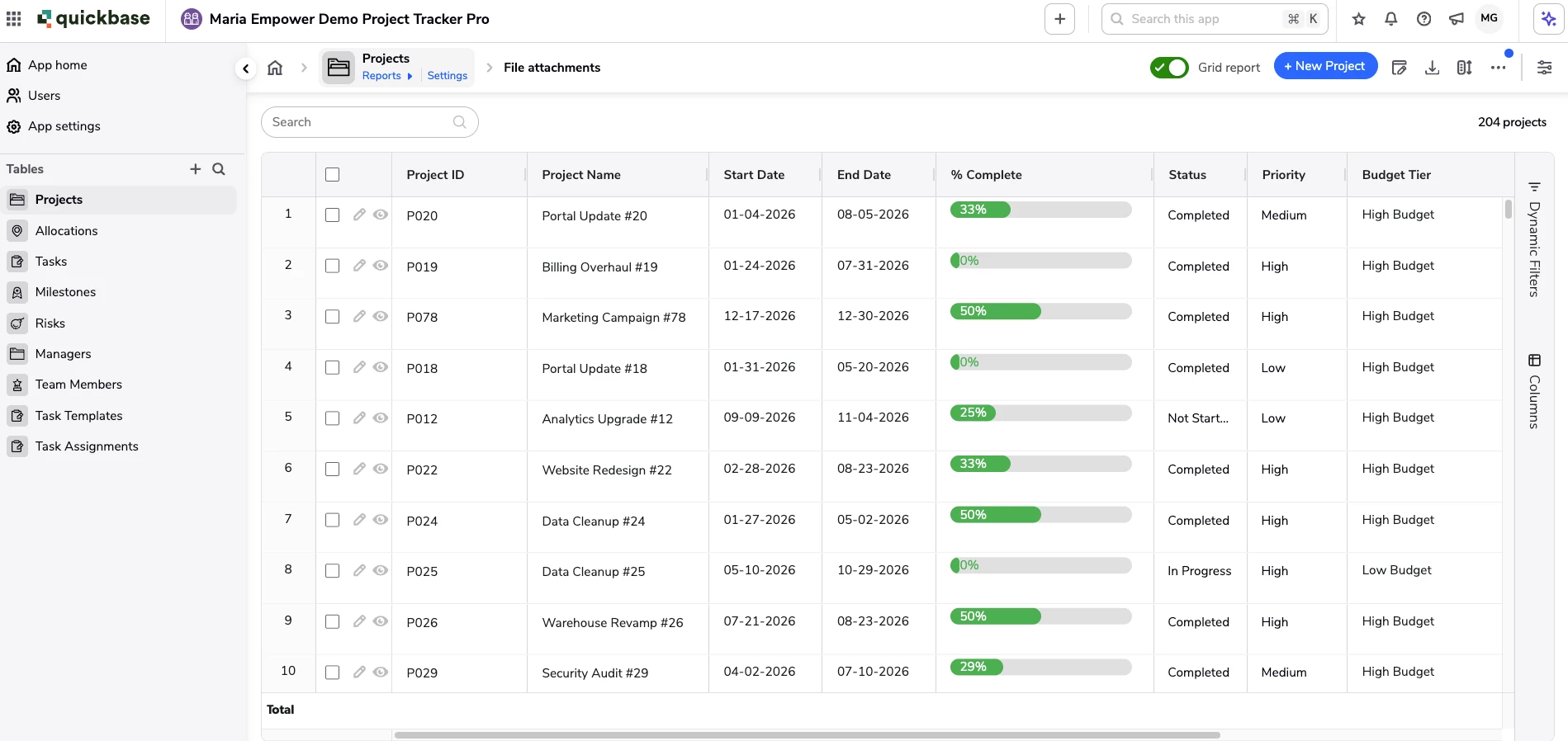
Row Numbers: Know Exactly Where You Are
The first thing we heard was simple: "I can't tell which row I'm on." "The one about halfway down" doesn't help anyone in a long report. Grid reports now show each row's position in the current view, so our project manager can message a teammate "check row 42" and they land on the same task. Row numbers also give her a quick sense of how many records the report holds, and numbers stay in sequence even in grouped reports.
How to turn it on: Row numbers are on by default for all grid reports. To change the default for a table, go to Settings > Reports & charts > Reporting defaults > Default report settings. To change a single report, open Customize report and pick Show, Hide, or Default (which follows the table setting).
Inline Error Messages: Fix Problems as You Go
Our project manager often updates 20 or more rows in one go. Customers told us that in moments like this, they want to know about a problem as soon as it happens.
Now, when an edit doesn't meet a field's requirements, such as a required entry, a date format, a character limit, or a unique value, the grid report marks the cell and adds the error to a running list. Each entry tells her the field, the row number, and what to fix. She can keep editing while errors are open, and she saves once everything is fixed. Errors that only show up at save time, like duplicate values, join the same list.
The error list appears where it makes sense for each report:
-
Standalone reports: in the toolbar.
-
Dashboards: at the bottom of the embedded report.
-
Forms: in the embedded report's toolbar, next to Add new record.
How to turn it on: No setup needed. Inline error messages work automatically whenever you edit a grid report.
Learn more about editing errors
File Attachment Editing: Manage Files Right in the Report
Our project manager's team attaches specs, contracts, and screenshots to tasks, and several customers asked to manage files like these without opening each record. Now she can upload, replace, and manage files without leaving her report. File attachment editing works in standalone reports, report and search widgets on dashboards, and reports embedded on forms and sub-forms.
Here's what she can do:
-
Upload, replace, delete, restore, and lock files.
-
Drag and drop a file onto a cell to start editing right away.
-
Undo and redo file changes.
-
Spot file types quickly with icons for PDF, Excel, Word, and video files.
-
Find all file actions in one menu when a column is narrow or a file name is long.
We also built in safeguards, because files are heavy and mistakes are costly. She gets a warning when her unsaved changes, files and text together, reach 80% of the save limit. If she goes over, Save turns off until she removes some changes. Files a teammate has locked stay protected until they're unlocked, just like on forms. And clear messages explain what to do for required fields, restricted fields, and files over 100 MB.
How to turn it on: File attachment editing is on by default. Any file attachment field in a grid report is ready to edit.
Learn more about file attachment editing
Dynamic Row Height: Read the Whole Note in Every Row
Fixed row heights keep a report tidy, and for most data that's what you want. Our project manager's team writes longer notes, though, and teams like hers asked for a way to read the whole note without opening the record. With dynamic row height, each row grows to fit the content of one text column she picks, up to 650 pixels tall. She chooses the Notes column, and every row now shows the full note while the rest of the report stays easy to scan.
How to turn it on:
-
Go to the report settings page, or to the table's default report settings.
-
In Default row height, select Dynamic row height.
-
Select the column that should set the row height. You can pick a text, multi-line text, or rich text column, including formula versions of each.
-
Save your changes.
Dynamic appears in the Row height menu once it's set up, so anyone can switch to it anytime.
What's Next
We're not done. Every one of these updates started with something our customers told us, and we want to keep hearing from you. Turn on grid reports in App Properties for any app, try the new features, and let us know what you think.