Forum Discussion

AHaning's avatar
AHaning
Qrew Member
1 month ago
Solved

QR Codes

Trying to get a qr code to print on a 4x6 label and I am using Exact Forms Plus and I have the following formula in my purchase order table under QR Code: 

"<img src=\"https://quickchart.io/qr?&size=150x150&text=" & URLEncode(URLRoot() & "db/" & Dbid() & "?a=dr&rid=" & [Record ID#]) & "\" />"

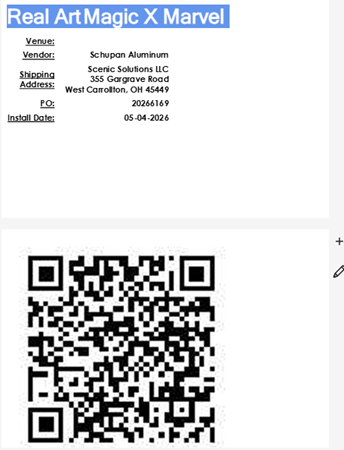
No matter how I have that formatted it does NOT change the size of the qr code as shown in the attached picture. Using that formula, the qr code does scan to the correct information. 

I had found a format on one of the help tutorials telling me that I needed to use this code in my template: ~=barcode(f[227],qrcode,150x150)~

 When I use that field in my template, it works perfectly and I can get the qr code to resize just the way I need it to at whatever size, BUT The code no longer scans.  It comes up to a google page searching for F(227).

  • Hello @AHaning I would suggest you create a formula richtext field and have the formula inside there. Then in the Exact Form Plus where you're embedding this just use the field id on the xxx field below([xxx])
    ~=barcode(f[XXX], qrcode, 200x200)~

    I have done this before and  I was able to manipulate the height and width. Initially what you were trying to do it was being rendered as a string. Let me know how it goes.

6 Replies

  • Denin's avatar
    Denin
    Qrew Captain

    If you want to make the QR code large, first increase the pixels size parameter in the img tag you have there 

    "<img src=\"https://quickchart.io/qr?&size=150x150

    For example's sake, change it to 750x750

    "<img src=\"https://quickchart.io/qr?&size=750x750

    This way your third party API, Quickchart, will generate the image in the higher resolution. Now you may need to add additional height and width tags to the image tag so it will display in proper resolution like so:

    "<img src=\"https://quickchart.io/qr?&size=150x150&text=" 
    & URLEncode(URLRoot() & "db/" & Dbid() & "?a=dr&rid=" & [Record ID#]) 
    & "\" width=\"750\" height=\"750\" />"

    I added: 

    width=\"750\" height=\"750\"

    • MarkShnier__You's avatar
      MarkShnier__You
      Icon for Qrew Legend rankQrew Legend

      Your code looks correct and here is my code for comparison. You're on the right track using the format suggested by Juiced because they have a built-in QR code generator that will never end up behind a paywall. 

      Here is my similar code  

      ~=barcode(f[115],qrcode,120x120)~

      Be sure that you list the field that has the URL for the QR code in your Clist  on the document template set up.  

      and obviously double check the URL that you are providing to make sure it's a valid URL that goes where you want it to  


      • Denin's avatar
        Denin
        Qrew Captain

        Not familiar with Juiced plugins but if that is a separate way to generate a QR looks like he should change the 120x120 part or 150x150 as he has it to something larger. I'm guessing that's image dimensions.

        Edit: AHaning​ Sorry, I reread the post and understood your issue with this Juiced approach now, did you update the f[xxx] part to be your field ID that you want a QR code of? Maybe the way they generate a QR code is expecting a specific data type, so you need to match it.

  • Roy-Wanyoike's avatar
    Roy-Wanyoike
    Qrew Assistant Captain

    Hello @AHaning I would suggest you create a formula richtext field and have the formula inside there. Then in the Exact Form Plus where you're embedding this just use the field id on the xxx field below([xxx])
    ~=barcode(f[XXX], qrcode, 200x200)~

    I have done this before and  I was able to manipulate the height and width. Initially what you were trying to do it was being rendered as a string. Let me know how it goes.

    • AHaning's avatar
      AHaning
      Qrew Member

      YES.... I had the field coded as a formula url instead of richtext!! This was it!! THANK YOU!!!!!!!!!!!  :)