Weekly Report Summaries with AI Actions in Pipelines
So far in this series, we’ve explored how AI Actions can extract key details from emails and analyze complex documents like 10-K filings. Today, we’ll make it even more practical — automating weekly reporting. Many teams rely on weekly Quickbase reports to track key metrics, project updates, or customer issues. With AI Actions, you can now generate a concise AI-written summary of those reports every week — automatically. No manual copy-pasting, no rewriting dashboards, no time wasted on reading reports — just clear insights, delivered on schedule. Why Automate Weekly Summaries? Quickbase reports are great at presenting data — but stakeholders often want a digestible narrative: What changed this week? What trends are emerging? What should we focus on next? By scheduling a Pipeline, it can automatically: Pull a Quickbase report each week. Feed it to AI Actions along with some instructions. Store or email the AI’s analysis to your team. The Pipeline Flow Here’s how this works step by step: Schedule: A scheduled pipeline runs every Monday morning. Quickbase Actions: The pipeline fetches the latest report data (e.g., project updates, tickets, or KPIs). It stores it as a CSV in Quickbase. AI Action: The data is analyzed and summarized by AI in plain English. Quickbase or Email Output: The summary is emailed to key stakeholders. You can also watch the quick demo here: Pipeline YAML: # Report Summary (CSV) # # Account slugs: # - quickbase[REDACTED]: Realm Default Account <none> # - microsoft-outlook[REDACTED]: Georgi Peev (...) # <none> --- - META: name: Report Summary (CSV) crontab: 0 8 * * 1 crontab_timezone: America/New_York enabled: false - ACTION bucket pipeline_row define -> a: inputs-meta: date_format: '%Y-%m-%d' datetime_format: '%Y-%m-%dT%H:%M:%SZ' header_row: Project ID, Project Name, Status, Priority, Owner, Department, Region, Start Date, End Date, Budget, Description, Customer Name, Project Manager, Team Size, Completion, Risk Level, Last Updated, Client Satisfaction, Is Billable, Project Type, Revenue ($), Expense ($), Profit Margin (%) header_separator: ',' type_of_budget: number type_of_client_satisfaction: number type_of_completion: number type_of_customer_name: string type_of_department: string type_of_description: string type_of_end_date: date type_of_expense: number type_of_is_billable: boolean type_of_last_updated: date type_of_owner: string type_of_priority: string type_of_profit_margin: number type_of_project_id: string type_of_project_manager: string type_of_project_name: string type_of_project_type: string type_of_region: string type_of_revenue: number type_of_risk_level: string type_of_start_date: date type_of_status: string type_of_team_size: number name: Define table for report - QUERY quickbase[REDACTED] record search -> b: FILTERS: - AND: - status is "In Progress" <in progress=""> inputs-meta: export_fields: '"Budget ($), Client Satisfaction, Completion %, Customer Name, Department, Description, End Date, Expense ($), Is Billable, Last Updated, Owner, Priority, Profit Margin (%), Project ID, Project Manager, Project Name, Project Type, Region, Revenue ($), Risk Level, Start Date, Status, Team Size" <15, 23, 20, 17, 11, 16, 14, 27, 24, 22, 10, 9, 28, 6, 18, 7, 25, 12, 26, 21, 13, 8, 19>' table: '"AI Actions - Georgi Peev: Report Summary - Projects" <bvjypq5b3>' name: Fetch report records - b<>LOOP: - DO: - a<>ACTION bucket pipeline_row create -> c: inputs: budget: '{{b.budget}}' client_satisfaction: '{{b.client_satisfaction}}' completion: '{{b.completion}}' customer_name: '{{b.customer_name}}' department: '{{b.department}}' description: '{{b.description}}' end_date: '{{b.end_date}}' expense: '{{b.expense}}' is_billable: '{{b.is_billable}}' last_updated: '{{b.last_updated}}' owner: '{{b.owner}}' priority: '{{b.priority}}' profit_margin: '{{b.profit_margin}}' project_id: '{{b.project_id}}' project_manager: '{{b.project_manager}}' project_name: '{{b.project_name}}' project_type: '{{b.project_type}}' region: '{{b.region}}' revenue: '{{b.revenue}}' risk_level: '{{b.risk_level}}' start_date: '{{b.start_date}}' status: '{{b.status}}' team_size: '{{b.team_size}}' name: Add record to table note: match the column names from the query step - a<>ACTION bucket pipeline_row download_csv -> d: {} - ACTION quickbase[REDACTED] record create -> e: inputs-meta: table: '"AI Actions - Georgi Peev: Report Summary - CSV files" <bvjy9kdu7>' name: Create record for file - e<>ACTION quickbase attachment upload -> f: inputs: field: '6' name: '{{d.file_name}}' url: '{{d.download_url}}' name: Upload report file - LOOKUP quickbase[REDACTED] record look_up -> g: inputs-meta: table: '"AI Actions - Georgi Peev: Report Summary - CSV files" <bvjy9kdu7>' export_fields: '"file" <6>' inputs: id: '{{e.id}}' name: Fetch uploaded file - ACTION qb-ai-actions custom_action create -> h: inputs: file_url: '{{g.file.file_transfer_handle}}' system_message: "You will receive a CSV file representing a Quickbase report.\ \ Your job is to analyze the report and produce an HTML-ready email containing\ \ the analysis. Output must be only valid HTML suitable for sending as the\ \ body of an email (no external CSS, no scripts, inline styles only). \nThe\ \ report contains currently active projects.\nBased on trends and dependencies:\n\ - Flag the top 10 projects that are at risk the most. Provide some details\ \ like project id, project name, PM and other info you find useful.\n- Provide\ \ an explanation on why you've flagged each one\n- Give a suggested action\ \ item for each one" user_message: file attached below name: Summarize - ACTION microsoft-outlook[REDACTED] email send_email -> i: inputs: body: '{{h.output_text}}' subject: Weekly report - at risk projects to_addresses: ... ...</bvjy9kdu7></bvjy9kdu7></bvjypq5b3></in></none></none> The AI Prompt You can tailor the AI persona to your audience. Here’s the one from the example that works well for leadership updates: You will receive a CSV file representing a Quickbase report. Your job is to analyze the report and produce an HTML-ready email containing the analysis. Output must be only valid HTML suitable for sending as the body of an email (no external CSS, no scripts, inline styles only). The report contains currently active projects. Based on trends and dependencies: - Flag the top 10 projects that are at risk the most. Provide some details like project id, project name, PM and other info you find useful. - Provide an explanation on why you've flagged each one - Give a suggested action item for each one Why This Matters This example demonstrates how AI Actions can automate recurring intelligence from Quickbase data — not just static documents or ad-hoc inputs. By scheduling weekly summaries, you’re turning your operational data into living insights your teams can actually use. You can take this further: Summarize multiple reports in one flow Compare current vs. previous week automatically Send or record summaries via other Pipelines channels Conclusion AI Actions continues to expand what’s possible inside Pipelines. From analyzing emails and PDFs to now scheduling recurring AI insights, Quickbase users can close the gap between raw data and decision-ready information. Start small: schedule your first AI-powered summary this week — and let your reports start writing themselves!302Views0likes0CommentsQrew Tip #05: Pipelines 101
Whether you're syncing data between systems or automating onboarding tasks every time a new customer is added, pipelines are designed to save you time and reduce manual work. Key terms Knowing these terms will help you understand documentation and submit more specific support tickets: Pipelines: automated workflows for integrating systems or automating within Quickbase Channels: the systems you’re connecting with (e.g., Slack, Outlook, Quickbase) Steps: the building blocks of a pipeline. There are different types of steps, including: Triggers: events that start a pipeline (e.g., record changes, daily schedules) Actions: tasks the pipeline performs (e.g., create records, send emails) Queries: search steps to avoid duplication or check data before acting 💬 Are there any terms you would add to this list? Let us know in the comments! Types of pipelines There are three types of pipelines: Triggered: runs when an event occurs Scheduled: runs on a set timeline Manual: runs on demand or from another pipeline ✨ Whether you're just getting started or building advanced automation, pipelines give you the power to scale smarter. 👉 Want to see it all in action? Watch the full webinar here92Views0likes0Comments
Procore to QB API Connection
Hi all Are their any construction companies that have completed this connection? If you have found this valuable to your company, what is the best process for moving forward and how would you suggest to do so. ------------------------------ Jessica Matenga ------------------------------84Views0likes1CommentIntroducing Pipelines - Webinar Q&A
Many organizations are finding that the need for innovative processes and automated work is continuously growing while even the most flexible tools are no longer fast enough when they don't work together. At the same time businesses are struggling more than ever to find resources to help them develop the custom integrations and automations they're missing. With our brand-new Pipelines technology, Quick Base is introducing capabilities that empower builders of all backgrounds to automate work across integrated systems. In case you didn't have a chance to join us, you can still get a great introduction to Pipelines by watching the recording here! This thread is dedicated to questions that we didn't get a chance to cover during the webinar. Post your questions here and our Pipelines team will do the best to answer your questions. We want to know what you are curious about and cannot wait to bring Pipelines to you. ------------------------------ Evan Martinez Community Marketing Manager Quick Base ------------------------------1.4KViews2likes65Comments
Automating Tasks with Pipelines!
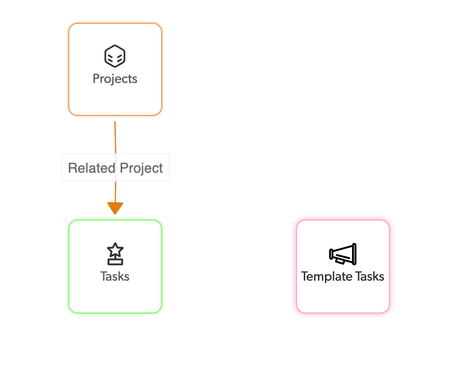
Automating Tasks Using Pipelines! Now that you have your shiny new toy in the way of our latest feature, pipelines, you will want to learn ways you can begin to take advantage of this amazing new feature. In this post you will learn how to automate your tasks quickly, efficiently and most important easily through pipelines. In this example I'll be using a simple Project Management application for the example use case. In this example we will need 3 tables; a Projects table, a Tasks table, and a Task Template table. I will also have a single relationship where Projects have many Tasks. Below is an example of my relationship diagram I will be working with. For this example, I will keep the fields as simple as possible, so we are only looking at the information we will need for this pipeline. The Projects table will consist of two fields: Project Name and Project Type. The Tasks table will have a Task Name, Status and a Sort field. The Task Template table will have a Task Name, Project Type and a Sort field. The Project Type field is the most important field in this scenario as this is how we will query our Template Tasks table to locate and add/relate the correct records to our Project upon triggering. The Sort field is also important as this allows us to sort the Tasks in the order they should be completed for this particular Project type. Step 1: Populate the Task Template table with the tasks you need for each variation of your Project Types. Below is the example I'll be working with. Step 2: Assign a user token to your application Click on your name in the upper right > click, My Preferences > then Manage user tokens. From here create a new user token and assign it to your application. Or if you have already created a user token you can assign your app to an existing token. Remember to click save when you are done. Step 3: Connecting to the Quick Base Channel Click on the Pipelines tab in the upper left of your screen. Then click "Create a pipeline". Click on the Quick Base channel and click "Connect to Quick Base". Now a screen will appear and you will be prompted to enter your company subdomain on Quick Base (Realm) and your user token. This is the first portion of your Quick Base URL. For example, if your URL is Hooli.quickbase.com. The subdomain will be Hooli. Once ready click, Connect to Quick Base. Step 4: Creating your trigger! Now that we have established a connection for the Quick Base channel we can get to the fun stuff! In this scenario I'll be using the Add Record trigger. Start by locating the Add record trigger and click and drag it into the first position in your pipeline. Once in place, select the table you want to use as the trigger. In this case we will be using our Projects table. Next specify the fields needed for subsequent steps in your pipeline. For this example we will need the Project Type field. Below is an example of what your trigger should look like. Step 5: Creating your Query Click and drag the "Search records" step just below our trigger. Select the Template Task table from the table dropdown. In the fields section, select Order, Project Type and Task Name. Next click the "Add conditions" button and select the Project Type field. Update your operator to "is", then locate the Project Type field from your previous step and drag it into the text box. Your query should now read "Project type is {{a.project_type}}". Below is an example of what this looks like. Step 6: Adding your Create Record Action Locate the "Create record action" and drag it in place below our Search record query. Select the Tasks table from the table dropdown. Under "Select fields to Specify values" select; Task Name, Status, Order and Related Project(this is important so we can properly relate our new records to the Project record we just added). Next use the steps above to populate each of the fields we selected. For Status, I will select the value "Not Started". NOTE: my status field is a multiple choice field which allows me to select this as it is a choice for the field. For Related Project, expand the Projects step and drag the Record ID# in place. For Order, expand the Search records step and drag the Order field into place. For Task Name, expand the Search records step and drag the Task Name into place. Below is an example of creating this step. Our pipeline is now complete! Flip the toggle in the upper right and turn your pipeline on! Go back to your application and let's trigger our pipeline! ------------------------------ James Travaglini ------------------------------59Views1like0Comments