Solving Filtered Multi-Selects in Quickbase
One limitation I run into fairly often in Quickbase is filtered multi-selects. Quickbase supports conditional dropdowns on relationship fields, which works well when a user is selecting a single option. The issue comes up when users need to select multiple options and still have those options filtered based on one or more previous selections. Since multi-select fields can’t be filtered, users end up seeing options that don’t apply. I recently built a solution for this and wanted to share the pattern, since it’s reusable across a lot of different scenarios. The Challenge Out of the box: Conditional dropdowns only support single selection Multi-select fields can’t be filtered Users end up seeing options that don’t apply In this case, the requirements were: Users must be able to select multiple options in both steps Only valid options should ever be shown The experience should feel simple and intuitive, not like a workaround The goal wasn’t to force something into a multi-select field — it was to keep the user experience clean while still enforcing valid selections. The Idea (High Level) The approach was to: Break the selection into two steps Let Quickbase build the valid options for the user (for example, using a pipeline) Let users select from only those valid options Rather than asking users to figure out what applies, the system does the work for them. Example Use Case Here’s a scenario people can apply this to: Step 1: User selects one or more Vendors Step 2: User selects applicable Services The key requirement: Not all Services apply to all Vendors Users should never see invalid combinations Instead of showing every Service and relying on users to know what applies, Quickbase only presents options that are valid based on what they selected in the first step. User Experience From the user's perpective: The user selects one or more Vendors The user saves/submits their changes The system generates a clean list of only the valid Services The user checks the Services they want This ends up feeling very similar to a filtered multi-select, without exposing irrelevant options to the user. Why This Works Well This pattern: Prevents incorrect selections Keeps the interface clean and focused Is easy for users to understand Scales well as options grow Works for both many-to-many and one-to-many scenarios How Others Can Reuse This This approach works anytime: Selection B depends on Selection A Users need to choose multiple options You want to hide anything that doesn’t apply What you'll need: A clear source of truth for valid combinations A step where the system generates valid options A simple selection step for the user You don’t need the exact same data model - just the same concept. Replace “Vendors” and “Services” with whatever fits your use case. April Barragan | Solutions Consultant Website | LinkedIn | Knowledge Base183Views4likes2Comments
Conditional Dropdown - Multiple Values
I have a table named Organizations. I have some conditional dropdowns for fields detailing where these organizations are based, using two other tables: Country and City. However, our dataset is rather large, and some of the Organizations are present in multiple Countries or multiple Cities (or both). Thus, as I understand conditional dropdowns cannot use multi-select fields, a traditional conditional dropdown does not quite suit my needs. Of the solutions I can think of, all have downsides. 1) Instead of having Organizations as the child table in the dropdown relationships, I could use a join table instead, so that Organizations has a many-to-many relationship with Cities, and each organization can be listed with multiple countries and/or cities if needed. Downside I won't be able to sort and filter my Organizations table easily by city and country, as it will be the parent table of where the data is actually stored. Given the size of my dataset, easy filtering and analysis of the Countries and Cities involved is important for us. Or is there a way around this? 2) I could create a second or third conditional dropdown, in order to add these second or third locations. Downside Also difficult to filter and analyse data, and fiddly to enter data. 3) I could create a 'Multiple Locations' value option in the Countries and/or Cities, and then have a new field in my Organizations table to detail this supplementary information. Downside One set of values would be divided among different fields. Question: Does anyone have any suggested alternatives to the options above? Or solutions to the downsides identified? Any advice enormously appreciated!129Views3likes0CommentsUser Focus Technique Demo on April 15th
Just a heads up that I will be doing a demo of the User Focus Technique on Tuesday April 15th. Register to attend or at least to get access to the recording after the session. https://community.quickbase.com/discussions/app-builder-discussion/aprils-app-builder-agenda-for-april-15th-2025/90452 Register Here Agenda for the App Builders Qrew Meet Up Tuesday April 15th at 12pm EST: Mark Shnier, owner and developer of Your Quickbase Coach, who will present some use cases solved with the User Focus Technique, including calculating distances between addresses and quickly assigning team members to a project. This Technique should be in your toolkit as it's really useful and provides a great End User experience. This session will include an app by Mark that is now available in the Exchange that you can download and apply what you learned from this session right away.103Views2likes1Comment
The Journey of a New Quickbase Builder: Many to Many Relationships
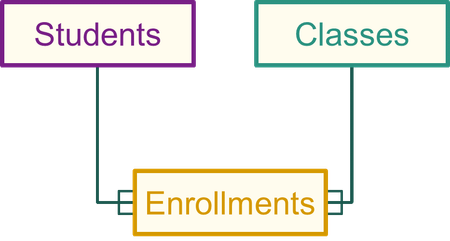
The most common Quickbase table relationship is a one-to-many relationship as I explained in my previous blog. (Example: One customer can have Many orders) But what if we were in a situation where two tables related as a many-to-many? Example, you have two tables (Students and Classes) where students can have many classes and classes can have many students. You wouldn’t want to solve with a one-to-many format making them both parent and child tables to one another because you would essentially be entering data twice, and it wouldn’t be the most efficient manner in entering information. The best solution would be to create a many-to-many relationship. A Many to Many relationship is a method for connecting two tables that both need to be the parent table, through a third intermediary (or “join”) table. Example: My “AHA” moment: The key to creating the many to many relationships and understanding their flow is the join table. The join table houses any combination of data between the two parent tables, and this is where most of the reporting/data entering should occur. Whenever you want to add information that links your two Parent tables, you do so by adding a record to the Join table. For example, if you want to sign a student up for a course, you would simply add a new record to the enrollments table. Within the new record, select the related class and select the related student. Quickbase makes this easier by adding an Add Enrollments button to each parent table. From within a Class record, you can click the Add Enrollments button to assign a person to that class. You can do the same from within a Student's record. The button adds a new record to the enrollments table that joins a Student and a Class. Visual Example within the Students table: The Many to Many concept has taken me some time to understand. If you’re just starting out on Quickbase and you’re confused on how to set these up, I get it! I’ve been there. I’ve found the best way to understand Many-To-Many relationships is to create a bunch of them within my builder account. I started thinking about all the many to many examples I have in my life and started building out a few of them to help me better understand. One final example I will share is I created an app that revolves around keeping track of different sports leagues. I am a sports junkie and constantly participate in different leagues, so I thought it would be a fun use case to explore. My many-to-many came into play between a Players table and a League table. Players can play in many leagues and leagues can have many players. To join these two tables I created a registration table where my data relates to one another. Again, keep creating! It is the best way to understand the Quickbase platform and journey into becoming an expert builder! For a deeper dive into Many to Many relationships please check out our help guides, live trainings, and our University page. There is also this informative video from Kirk Trachy on YouTube. As always please feel free to add comments or feedback below!282Views2likes0Comments
How to make a summary report from multiple tables?
I have four tables. A Project table, a Task table, an Assembly table and an Item table. Each record in the Project table has many related tasks. Each record in the Task table has a numeric field dictating the number of assemblies needed for the task. It also has a dropdown to choose an assembly from the Assembly table. Each record in the Assembly table has a list of many related items from the Item table. Each record in the Item table has a field dictating the number of items needed to make the assembly it is related to and the Item description. I want to make a report that summarizes the total number of each unique item descriptions needed to complete the project. So: For each task, total the # items individually per assembly multiplied by the # of those assemblies needed for the task. Then combining the totals for items of the same description across all of the tasks of the project. Is there a way to do this either within native quickbase or using external tools? If external tools are required do you have any recommendations of what to use?219Views2likes9Comments
How to use JavaScript to concat child records into a single field?
I'm trying to learn how to concatenate multiple child records into a single field on a report. I have spent a lot of time searching google and the help forums and have come up with nothing. I don't want to use reverse look up because there could be a lot of records I'm returning or only 1. I figured the best way to accomplish this would be JavaScript. Maybe some tutorials on how to implement JavaScript functionality with QuickBase would help.586Views2likes21Comments
Hi Guys, I'm new to Quickbase I have trouble in building relationship. Pls help
1.I have two tables called Companies and Orders 2.I created Table to table relationship in Orders(Companies to Orders) 3.Issue-->I select company name in Details table. If I try to access the Orders table I'm not getting the Company name in the company field instead i get Company address value in the Company name field.38Views2likes2CommentsHow to create an auto-number for a item label
We have searched QuickBase and the Internet and found nothing useful so here's to hoping someone has something useful to share. We are creating a printable form. One of the items on the form is an auto-number based on a summary of labels. The auto-number is based upon the count of labels in a summary passed back to the label table. The problem is while the auto-number works, it updates all the labels and not the one we are creating. We have tried to pass the number to another field. We have tried to use dynamic form actions, which worked and then stopped working. I read one post that talks about a snapshot but it links to an App that is no longer available. Has anyone had any luck generating auto-numbers from count summary fields or is there an easier way we cannot see? Any ideas, or links to instructions or Apps are appreciated.117Views2likes6Comments