1.2KViews7likes28Comments
Sneak Peek: Type-Ahead Search Picker
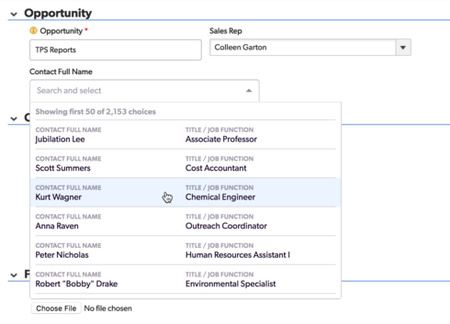
While we at Quickbase love to work on great new features, like Kanban reports or Automations, we also take time to focus on the fundamentals. And what could be more fundamental to Quickbase than quickly and accurately entering data? So many of our customers tell us they come to Quickbase apps because they've outgrown spreadsheets and need to move to a relational database to handle the complexity of the work they need to track. Recently, we've been taking a hard look at how we can improve this fundamental activity of Quickbase apps: relating data. What did we find? After talking to customers with big data sets and small, we realized our record picker needed to be better at finding records quickly and making sure users knew exactly what record they were picking! If you're not familiar with our record picker, here's a crash course. (You can find out more about configuring it in Quickbase University.) When you're working with a relatively small data set, we show a simple HTML drop down. It works well if you've got some easily discernible records and you know what you're looking for, but if you've got a larger set of data, it can be much harder to find what you're looking for. Now, one of the things we all love about Quickbase is how deeply customizable it is. So what if I want to only pick from records which meet a certain criteria? Or if I want to make sure the most likely to be picked options are at the top? Quickbase has a solve for that! In the form properties, you can choose a report on which to base the record picker, which allows you filter and sort the field. It's great that you can apply sorts and filters, but unless you really trim down the columns, it can be really hard to read for end users. Beyond that, they may not understand what data is displayed in the list and given that each record displays all its data on one line, it can be hard to match up values to compare them. In addition, our users told us they expected to search through these records to find what they were looking for, but our simple record dropdown doesn't support that. For search, we need to go into the record picker pop-up. In field properties, you can configure this relationship to always use our record picker pop-up but getting to it requires more clicks and takes the user out of the context of the record they're editing. What we found in talking to customers was that their teams needed a faster way to search their data. After seeing all this, we got to work. Presenting the new Quickbase Type-Ahead Search Picker: If your app builder has chosen to display only one field to pick records on, we're now going to present a fast, searchable picker, very much like the new field picker we rolled out back in spring or the user picker we've have. If your app builder has chosen a report or the standard record picker to select from, you'll see a multicolumn picker, able to display up to nine fields of relevant data, with each column labeled so users clearly can see what they're picking from. We load the first 50 results automatically, so users can browse. As you search, the list updates in real time, pulling in more records and highlighting the matching terms, very much like our user field type. This new picker will be rolling out to all users in the coming months. If you'd like a sneak preview, we have it available in early access starting the week of September 24th. Just have your realm administrator open a support ticket and request it at https://login.quickbase.com/qb/support/listcases Thanks for reading and be on the look out for more posts and previews about our new type-ahead search picker! Sam Jones Quickbase Product Manager800Views0likes58CommentsService Worker to the Rescue
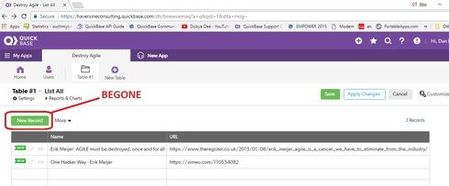
There has been a lot of traffic opining about the new release that changed various aspects of the GUI. To be honest I didn't read most of the posts in detail nor do I have any problem overcoming any of the undesirable changes. That is because I can modify any aspect of QuickBase using Service Workers. You can to. As an example, here is a grid edit viewof an application that shows the current green New Record button which I want to remove using a Service Worker: Here is a screenshot of the same page where a Service Worker has removed the green button: Now you may be wondering what the left hand panel is and why the URL is showing the domain https://cloudflareworkers.com/. In a nutshell, cloudflare has implemented a jsfiddle like service where you can demonstrate and share the implementation of a Service Worker as applied to any URL. It just turns out that this is an easier way for me to publiclly share a Service Worker demo rather than implement it wholly within QuickBase. Here is full source of the Service Worker used above: addEventListener("fetch", event => { event.respondWith(fetchAndModify(event.request)); }); async function fetchAndModify(request) { console.log("got a request:", request); // Send the request on to the origin server. const response = await fetch(request); // Read response body. const text = await response.text(); // Modify it. const modified = text.replace( '<a onclick="GE_embMenu_newRec(this)" id="GE_NewRecordPick">New Record</a>', ""); // Return modified response. return new Response(modified, { status: response.status, statusText: response.statusText, headers: response.headers }); } Basically the Service Worker looks for the <a> element associated with the New Record button and removes it - BEFORE THE BROWSER EVEN STARTS TO RENDER THE PAGE. Now the important thing to notice is that this very same Service Worker implemented as a part of the CloudFlareWorker demo can be used as a client side Service Worker. (wholly within QuickBase) Now I could write a hundred pages extolling the virtues of using Service Workers with QuickBase but the bottom line is there is nothing Service Workers can't do. Service Workers is god mode for QuickBase. UPDATE: I forgot to post the link: https://cloudflareworkers.com/#28a28d6d0a693d85a38d856f44a8de37:https://haversineconsulting.quickbas...~ Similar to a jsfiddle, you can modify the Service Worker code in the left panel and create your own version for experimentation before porting the code to your own application.401Views1like20CommentsIOL Technique Officially Approved By QuickBase
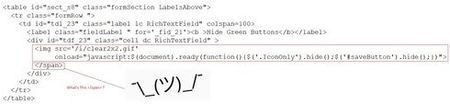
I missed this the other day when I posted about the form used by QuickBase on thier Quick Base Customer Awards nominations. In my post I mentioned that QuickBase had created a custom Save button that saved and redirected to a unique page and I also presented the code they used. What I forgot to mention (I missed seeing it) is that QuickBase itself is using a version of the IOL technique to hide the native Save button so as to make the custom Save button the only functioning button. The Forum post has been removed: https://community.quickbase.com/quickbase/topics/quick-base-customer-awards-nominations-are-open But the new record pages are still accessible: The Quick Base Hero Award ~ Add New Record https://team.quickbase.com/db/bneu8emfj?a=nwr If you watch very carefully upon page reload you can see the Save button momentarily appear and is then rapidly hidden. The HTML code QuickBase is using to achieve this is as follows: <table id="sect_s8" class="formSection LabelsAbove"> <tr class="formRow "> <td id="tdl_23" class="label lc RichTextField" colspan=100> <label class="fieldLabel " for='_fid_21'><b >Hide Green Buttons</b></label> <div id="tdf_23" class="cell dc RichTextField" > <img src='/i/clear2x2.gif' onload="javascript:$(document).ready(function(){$('.IconOnly').hide();$('#saveButton').hide();})"> </span> </div> </td> </tr> </table> Here is a screenshot of the relevant HTML in the inspector (which helpfully points out an unbalanced </span> element) The code above basically uses the image onload technique I created almost a decade ago but simply does not use a code page because the script in question was so short. So we have to conclude that QuickBase sees the value in script as a handy workaround and will be working hard to provide a supported way to introduce script into the product. For reference here is the accompanying post that described how QuickBase formed their custom Save button: This is !important https://community.quickbase.com/quickbase/topics/this-is-important Pastie Database https://haversineconsulting.quickbase.com/db/bgcwm2m4g?a=dr&rid=633224Views4likes7Comments
How do you create a successful user group?
One of the best ways to bring your Quickbase skills to the next level is by learning from your peers. But what if you're the only app builder or one of a small handful on your team? Forming or joining a user group, either internally within your organization or in your local area, is a great way to foster this kind of learning environment. At Quickbase, we're always looking to help Quickbase builders connect with each other and do great things. Here are a few questions for the group: If you are a member of a user group already, what are some keys to success? If you are NOT a member of a user group, what would make you want to join one? What can Quickbase do to help user groups thrive? Please share your thoughts!200Views0likes21Comments
Service Worker
I am working on implementing changes with Service Workers. I am following the series of posts from Dan Diebolt, Service Worker Travel Logs, and it is making sense. The one part I am stuck on is in the last one; https://community.quickbase.com/quickbase/topics/service-worker-travel-log-day-13, specifically implementing the cheerio.js library. Do I need to bring over every file in the GitHub page, or is there a way to simply reference them all at once?159Views1like7CommentsHow to install BOL (Branding On Load)?
We previously posted the BOL (Branding On Load) instruction as a file attachment but in the conversion to the new forum attachments were dropped. Here is an updated method of installing BOL: Step 1 Create a code page named moduleBOL.js and place some simple content in it such as this one line of code: console.log("moduleBOL.js loaded"); Step 2 Visit your Branding Page https://<YOUR SUBDOMAIN>.quickbase.com/db/<YOUR APP DBID>?a=AppPropertiesBrandGuide Step 3 To turn BOL ON, press F12 and paste this code into the console tab: //turn on BOL (function(){ var page = "moduleBOL.js"; var formData = new FormData(); formData.append("PageToken", $("input[name=PageToken]").val()); formData.append("customHeader", "on"); formData.append("uiCustomHeaderOptions", "iBasic"); formData.append("uiCustomTextColor", 'white !important\n}</style><img src='' style='display:none' onerror=$.getScript(gReqAppDBID+'?a=dbpage&pagename=${page}');><style>foo {\nbar: baz'); fetch("?a=SaveAppSettingsBrandGuide", { method: "POST", body: formData, credentials: "include" }); })(); Step 4 To turn BOL OFF, return to the branding page, press F12 and paste this code into the console tab: //turn off BOL: (function(){ var formData = new FormData(); formData.append("PageToken", $("input[name=PageToken]").val()); formData.append("uiCustomHeaderOptions", "iDefault"); formData.append("uiCustomTextColor", "white"); fetch("?a=SaveAppSettingsBrandGuide", { method: "POST", body: formData, credentials: "include" }); })(); Notes: 1) This code uses the Fetch API, the FormData API and ES6 backticks. You can google these terms or ask a question here if you need a better understanding. 2) Some people have inquired about the credentials: include property and value used in the code. This is not your QuickBase login/password credentials and is perfectly safe to use. By default the Fetch API does not send cookies so including credentials: include merely sends your cookies to QuickBase which includes your ticket. Sending your cookies to QuickBase is the normal operation. 3) Setting up BOL will include moduleBOL.js on every page in your application including administrative pages. In contrast the IOL technique injected code only into {new, view, edit, report, grid edit} pages. Also, moduleBOL.js will load relatively early in the process of loading your page. You will have to supply your own decoding logic to determine what page you are on and what actions you want to take. 4) Part of the reason we are introducing this version of BOL is to acquaint you with the Fetch API, the FormData API and ES6 features (not just backtick). These are powerful features to use with QuickBase in their own right as you can do some amazing things in a short amount of code. 5) But the real reason is to slowly introduce you to Service Workers which will blow away all these other methods of introducing JavaScript into your QuickBase pages and provide amazing new features you never though possible in a browser (like offline QuickBase - nope I am not joking). In the next few days (maybe tomorrow - it depends on if I get my grass cut today) we will launch the Service Worker Travel Log which will feature a new aspect of using Service Workers with QuickBase. So clear you head, pack your bags and bring lots of cash as we embark on a 30 day adventure of using Service Workers with QuickBase.133Views3likes7Comments
summary report formulas
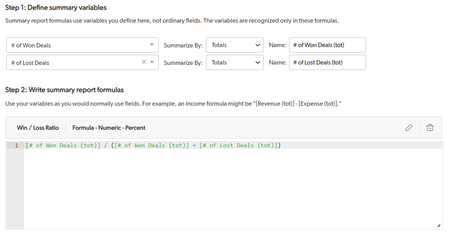
As a Data Analyst at Quickbase, I'm often asked to create reports and scorecards to track our performance over time. In most cases, it's easy to provide this data with the summary report feature – it can be done simply by adding the numeric fields to the report, choosing how to aggregate them (sum, average, etc.) and grouping by the appropriate date fields. But what can you do when you're asked to perform additional calculations on those aggregated metrics? Some people refer to this as the averages of averages problem, even though it is much more! There are plenty of these scenarios in every department: lead conversion in marketing, quota attainment in sales, net retention in finance, just to name a few… Also, different business units often have their own targets, and they need reports to inform how they are executing against them on a monthly, quarterly and annual basis. Since this was not possible on summary reports, my usual workaround was creating new tables, adding summary fields and doing the final calculations there. I'm very excited that now our product has a new feature called summary report formulas, which makes those calculations much easier than before, and will save me a lot of time and effort! Now, all I need to do is create a summary report on my source table, choose how to group my data and follow 3 simple steps: 1. Define summary variables – Simple example – Calculating win / loss ratio in Sales. Values to define: Total # of won deals Total # of lost deals. Complex example: Calculating utilization ratio against target for a customer support center. Values to define: Duration of direct customer support (hours) Duration of additional customer support tasks (hours) # of vacation hours # of sick leave hours 2. Write summary report formula – Formula to calculate win / loss ratio: Total # of won deals/ (Total # of won deals + Total # of lost deals) Formula to calculate utilization ratio against target (assuming that the report is grouped by week and by rep, each support rep works 40h a week and is expected to have a utilization of 60%): (Duration of direct customer support (hours) + Duration of additional customer support tasks (hours)) / (40 - # of vacation hours - # of sick leave hours) / 0.6 3. Add my new field(s) to the report. This way, instead of creating separate tables with calculations for each time period, I can build all of my reports with percentage calculations on the same table. Stakeholders won't have to wait for me to create a few tables, join them, add summary fields, and then write the formulas to get the results. Thanks to summary report formulas, I will be able to deliver data to the business in minutes, rather than days and hours! This feature is currently in beta. You can express interest in our beta registration application. We are inviting people into the program in waves but if you believe you have a use case that may enable you to provide valuable feedback on this feature, please reach out to your account team. ------------------------------ Aleksandra Cybulska ------------------------------122Views0likes0CommentsQuick Base Release Notes for February 2019
Our February release is packed with new features and enhancements that deliver on our core themes of trust, simplicity, and power. This month weÕre spotlighting: Enhanced audit log filtering Image thumbnail and preview for forms and reports Type-ahead search picker for all apps (new and existing) This release also includes: A new summary option: distinct counts The ability to create up to 3 report formulas Automations: Old field values, address fields, and re-ordering actions Visual Builder early access Full details on the release can be found in the release notes new home in Quick Base Help: https://help.quickbase.com/release-notes/february-2019-release-notes.html The February release of Quick Base, including the features and fixes listed in these release notes, will be available starting Sunday February 24th, 2019 once our release is complete. Release Features New settings button Expandable My Apps icon view Hide save as a spreadsheet Additional columns for Apps (Beta) page Formula function enhancements Early Access Sign up for future early access opportunities Enhanced field usage info for your apps Custom data validation Mobile app session management These highlighted features and more can be found in further detail in our February release notes. To keep up with upcoming releases and status updates for the Quick Base Platform you can always check our Status page.113Views0likes30Comments