A way to use Formula Queries to Assign Regions
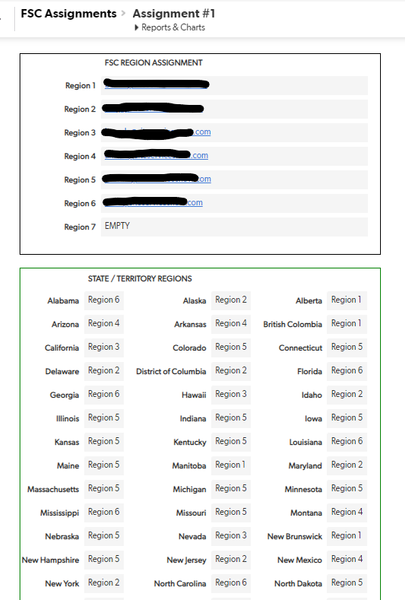
I thought I would share a method I found to use Formula Queries to create an easily editable list of regional assignments for my users, without have to create any table-to-table relationships. I have two tables involved in this: Sites and FSC Assignments. Sites are a list of work sites and I needed a way to be able to give them regional assignments, but also to be able to edit these assignment easily. What I did was to create the table called 'FSC Assignments' and it holds only 1 record which is a list of all of the states and territories we work in and a list of my users regional assignments. It looks like this (I made a simple form to hold the fields neatly): Then, back in my Sites table, I have 2 fields using Formula Queries to grab the Region from the STATE/TERRITORY section and the user from the FSC REGION ASSIGNMENT in the single record of the FSC Assignments table. [Assigned Region] is just a Formula Text field and the code looks like this: If( [State]="Alabama",(ToText((GetFieldValues(GetRecord(1, [_DBID_FSC_ASSIGNMENTS]),65)))), [State]="Alaska",(ToText((GetFieldValues(GetRecord(1, [_DBID_FSC_ASSIGNMENTS]),66)))), [State]="Alberta",(ToText((GetFieldValues(GetRecord(1, [_DBID_FSC_ASSIGNMENTS]),67)))), [State]="Arizona",(ToText((GetFieldValues(GetRecord(1, [_DBID_FSC_ASSIGNMENTS]),68)))), [State]="Arkansas",(ToText((GetFieldValues(GetRecord(1, [_DBID_FSC_ASSIGNMENTS]),69)))), [State]="British Columbia",(ToText((GetFieldValues(GetRecord(1, [_DBID_FSC_ASSIGNMENTS]),70)))), [State]="California",(ToText((GetFieldValues(GetRecord(1, [_DBID_FSC_ASSIGNMENTS]),71)))), [State]="Colorado",(ToText((GetFieldValues(GetRecord(1, [_DBID_FSC_ASSIGNMENTS]),72)))), [State]="Connecticut",(ToText((GetFieldValues(GetRecord(1, [_DBID_FSC_ASSIGNMENTS]),73)))), [State]="Delaware",(ToText((GetFieldValues(GetRecord(1, [_DBID_FSC_ASSIGNMENTS]),14)))), [State]="District of Columbia",(ToText((GetFieldValues(GetRecord(1, [_DBID_FSC_ASSIGNMENTS]),15)))), [State]="Florida",(ToText((GetFieldValues(GetRecord(1, [_DBID_FSC_ASSIGNMENTS]),16)))), [State]="Georgia",(ToText((GetFieldValues(GetRecord(1, [_DBID_FSC_ASSIGNMENTS]),17)))), [State]="Hawaii",(ToText((GetFieldValues(GetRecord(1, [_DBID_FSC_ASSIGNMENTS]),18)))), [State]="Idaho",(ToText((GetFieldValues(GetRecord(1, [_DBID_FSC_ASSIGNMENTS]),19)))), etc... The other is [REGIONAL FSC] and holds the user for a given region and the code looks like this: If( [Assigned Region]="Region 1", (ToText((GetFieldValues(GetRecord(1, [_DBID_FSC_ASSIGNMENTS]),7)))), [Assigned Region]="Region 2", (ToText((GetFieldValues(GetRecord(1, [_DBID_FSC_ASSIGNMENTS]),8)))), [Assigned Region]="Region 3", (ToText((GetFieldValues(GetRecord(1, [_DBID_FSC_ASSIGNMENTS]),9)))), [Assigned Region]="Region 4", (ToText((GetFieldValues(GetRecord(1, [_DBID_FSC_ASSIGNMENTS]),10)))), [Assigned Region]="Region 5", (ToText((GetFieldValues(GetRecord(1, [_DBID_FSC_ASSIGNMENTS]),11)))), [Assigned Region]="Region 6", (ToText((GetFieldValues(GetRecord(1, [_DBID_FSC_ASSIGNMENTS]),12)))), [Assigned Region]="Region 7", (ToText((GetFieldValues(GetRecord(1, [_DBID_FSC_ASSIGNMENTS]),13)))) ) The result is this: The region and regional FSC are picked from that single record in the FSC Assignments table. Should we need to change any of those, a user can simply edit the record and the changes will apply without any need to do anything else: I did not need to make any table-to-table relationships, though getting the code right took a little bit of tweaking. I don't know that this is the best way to do this, but it definitely works. I'm curious if anyone has any feedback on this method. Maybe it can be improved. ------------------------------ Jeff Peterson ------------------------------39Views0likes0Comments
Forms, Tables, HTML Add some spunk to your forms. Add formatting to your forms.
If you want to add a bit of separation to your form I stumbled onto this. Maybe it's published but this works. See attached video So you have "TABS" and "Text" for form formatting. Well, let's say you want to delineate an area in a form by putting a box around it. Editing Form: 1: (first "text" element.) <table style="width:100%;border:1px solid black"> 2: (last "text" element.) </table> You can encompass many fields on your form by putting the </table> further down. ------------------------------ Douglas Folk ------------------------------301Views4likes7Comments
Calculating monthly consumption from a running total with QuickBase
Say you have many apartments and each has its own water meter but the water company only provides you the current water meter's reading. How do you subtract the previous months reading from today's to find the actual gallons consumed in any given month? You can do this in QuickBase, with a few formula fields, a relationship and an automation. We cover things like this in our daily (M-F) 1:00 pm webinar entitled "Office Hours". This is an opportunity to ask any question you like and we model the possibilities live. To register - visit http://quickbase.com/webinars/. ------------------------------ Kirk Trachy , Senior Solutions Consultant QuickBase | 603-674-5454 M | [email protected] ------------------------------31Views0likes0CommentsCreating edit buttons in your emails that look really nice
If you've ever used a custom email notification with a link that navigates you back to the original record, you'll likely see a long URL link like this below that links you back to QuickBase but in "display mode" (dr): You can make your own link and change that "display record" (dr) to "edit record" or (er) so when clicked you become immediately productive. While you are at creating this new link, you might consider using a pretty button rather than a hyperlink. The above video shows how you can use formula url fields and formula rich text fields to produce links and buttons that leave you in "edit record" mode and they can look very nice. We cover topics like this in our daily "Office Hours" webinars held Monday thru Friday at 1:00 PM Eastern time. All questions, comments and suggestions are welcome. To register, visit http://quickbase.com/webinars/. ------------------------------ Kirk Trachy , Senior Solutions Consultant QuickBase | 603-674-5454 M | [email protected] ------------------------------46Views1like1CommentFind the nearest Starbucks using QuickBase
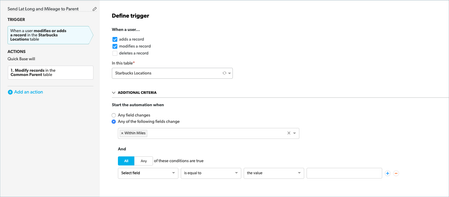
Last week Howard popped into an "Office Hours" webinar asking about how to find the closest customers to a given Latitude and Longitude location. Well you can do that with QuickBase. I went looking for a CSV file with a bunch of Latitude and Longitude locations and I found a file with all the Starbucks locations in the US. The essence of the application is to find a Starbucks, enter the distance you want to search and return a report and map of all those locations within that distance. This can be calculated if you have both the Home and the Destination's Latitude and Longitude. So we now have a Locations table [email protected] we need to add a parent table we can use to pass down all the home's Latitude, Longitude and Distance as lookup fields. We add the "Common Parent" table with only one record and made that related to all Location records. (we changed the reference field, "Related Common Parent" to a formula numeric field and put the number 1 in as a formula. Since there was only one Common Parent record, it's Record ID# was 1. So we created an automation that fires whenever a Location record's "Within Miles" field is updated. The automation will edit the parent record and update its Latitude, Longitude and Within Miles fields. This constant one to ALL relationship between the tables allowed us to always be sharing the last requested Latitude, Longitude and Mileage. Trigger: Action: Now that all the data is on all the location records, we added a formula numeric field to calculate the distance between the two. var number HomeLat = ToNumber([Home Latitude]); var number HomeLong = ToNumber([Home Longitude]); var number Lat = ToNumber([Destination Latitude]); var number Long = ToNumber([Destination Longitude]); var number Distance = Round(((69*($HomeLat - $Lat))^2 + (53*($HomeLong - $Long))^2)^0.5); If($HomeLat = 0 or $Lat= 0 , 0 , $Distance) Next we needed a way to flag only those locations that were within the "Within Miles" range. We created a formula checkbox field that would be checked if the Location record was within the range. So now we have the matching criteria to create the report link fields to display the results. The result: We cover topics like this in our daily, "Office Hours" webinars. Held M-F at 1:00 PM Eastern time. Feel free to drop in anytime. ------------------------------ Kirk Trachy , Senior Solutions Consultant QuickBase | 603-674-5454 M | [email protected] ------------------------------589Views2likes11Comments"Soft Delete" | Protecting your data from accidental deletion
A customer asked me today to help him recover records that were accidentally deleted. Well, hopefully you know that in an emergency, you can open a support case and our care team can help but he wanted to PREVENT the event from happening in the first place. My immediate thought was that this was another use case that would benefit from having a restore feature but there is a better and simpler solution using what one of our Senior Product Manager, Harrison Hersch calls "Soft Delete". Say you have a community of users that are notoriously deleting records and you need to restore them. For simplicity we'll call them Sales people, but we have all done this. How about we craft the Sales role to not allow record deletions? This solves part of the problem, but the other part is that the Sales people really would like to delete some records. Well, how about adding a checkbox we can call, "Soft Delete" and we adjust the Sales Role so they can only view records where the "Soft Delete" checkbox is unchecked. This now means that the Sales people can check the checkbox and the records will disappear from view. Whatever record they check will appear to be deleted but in fact it has only disappeared from their Sales role's view. We can then create a report that only contains records with the checkbox check and Administrators can now review, restore or permanently delete. A whole bunch of things can be added to this process to make it slick and easy to manage. We can add a button that checks that checkbox We can create a subscription report to remind the Administrator to review, restore or delete the records permanently We can create a schedule automation to delete the flagged records We can add a table to the app to handle Sales people's escalation requests to restore accidentally deleted records. The list can go on... Steps: Add the "Soft Delete" checkbox to your form or report. Create a Sales role (or whatever community of users you want protection) Flag the role so Deletions are disallowed Customize the View so you can only see records where the "Soft Delete" is not checked Optionally add a Formula URL button that will make checking the checkbox easier. You can press the button whether you are in display mode or edit mode. If you don't have a button, you will have to put the record in edit mode to check the checkbox. The code for the Formula URL button can look something like this: var text url = If([Soft Delete] = false, URLRoot() & "db/" & Dbid() & "?act=API_EditRecord&apptoken=biwvb32baypdx8cqfjj9pk2xiim&rid=" & [Record ID#] & "&_fid_26=1", URLRoot() & "db/" & Dbid() & "?act=API_EditRecord&apptoken=biwvb32baypdx8cqfjj9pk2xiim&rid=" & [Record ID#] & "&_fid_26=0"); "javascript:" & "$.get('" & $url & "',function(){" & "location.reload();" & "});" & "void(0);" Update the apptoken specific for your application and change the fid_26 to reflect the field ID number of your checkbox field. NOTE: QuickBase does not support the use of JavaScript in buttons. An alternative button below may be used instead but you will have to manually decide where you want to redirect. In the example below this will leave you on a report (qid=1). If([Checkbox] = false, URLRoot() & "db/" & Dbid() & "?act=API_EditRecord&apptoken=c7y3n83dz8fuc2n8jum5dzq4iky&rid=" & [Record ID #] & "&_fid_101=1" & "&rdr=" & URLEncode(URLRoot() & "db/" & Dbid() & "?a=q&qid=1"), URLRoot() & "db/" & Dbid() & "?act=API_EditRecord&apptoken=c7y3n83dz8fuc2n8jum5dzq4iky&rid=" & [Record ID #] & "&_fid_101=0" & "&rdr=" & URLEncode(URLRoot() & "db/" & Dbid() & "?a=q&qid=1")) We cover topics like this each weekday in our "Office Hours" webinars. This is an open conversation inviting questions and live modeling of how-to solutions. M-F at 1pm Eastern time. Register at: http://quickbase.com/webinars/ ------------------------------ Kirk Trachy QuickBase | Senior Solutions Engineer | 603-674-5454 M | [email protected] ------------------------------182Views2likes1Comment
Formula to change the record from a report once selected
I have a table report which displays records based on condition of a status field. Multiple users are going to access the report to change the status of every record. I want a record when in use to not be displayed in the report. Scenario: Once a user clicks on edit record from a table report, that record should not be displayed in the report. This is to prevent another user from clicking on the same records and updating the record status. How would this be possible? #Formulasandfunctions #APIsandcustomcode #Tipsandtricks ------------------------------ Raj Helaiya ------------------------------ 32Views0likes0Comments
How to display a thumbnail image on a table report
One of my favorite tips learned at EMPOWER2020 was from a session Chris Hutchens delivered titled Building for Mobile. He shared how to get a thumbnail image of a photo to display in a table report. While the session was geared towards mobile users, it's applicable to anyone that wants to show an image in a table report. I created a quick video to show demonstrate that little gem: https://youtu.be/M7p71Yo770c If you'd like to try this in one of your apps, simply watch the video and copy this code snippet to paste into a formula - rich text field: If(Length([Photo])=0,"","<img width=\"150\" src=\""&URLRoot()&"up/"&Dbid()&"/a/r"&[Record ID#]&"/e31/v0\"/>") Enjoy! ------------------------------ Freddie Sabbs Senior Solutions Consultant Quick Base [email protected] Cambridge MA ------------------------------404Views1like7Comments
Summarize data from one table with requirements from another table
Hello, I have two tables that are not linked. Sales Promo Line Items The sales table has the sales data (sku, price, date, qty) The promo line items has details of the promos (sku, promo price, promo start date, promo end date) I am looking for a way to get the sum of qty sold with the filters sku, promo price, start date, end date applied) For example, sku CAR would have 50 entries in the sales table between Jan 1st and Jan 31st with prices ranging from $100-$105. sku CAR is also there in the promo line items as CAR, $101.50, Jan 10th, Jan 12th. I would like to get a report from the sales table based on the fields in the promo line items. Thank you21Views1like2Comments
Converting from text field to rich text
I would like to convert a few text fields to rich text fields. I am curious of the pitfalls or challenges in doing so. Is any data lost in the process? Does anyone have experience and/or recommendations for this process? Thanks in advance, Geoffrey74Views1like5Comments